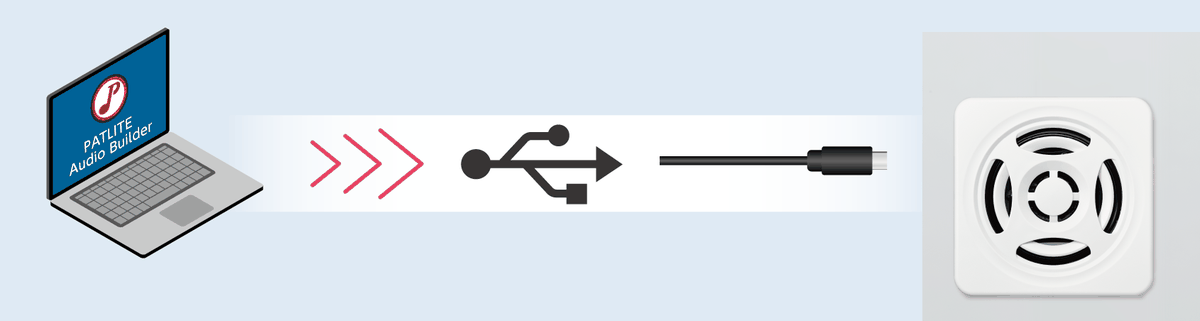
PATLITE Audio Builder is free software for creating playlists for PATLITE voice products and transferring them to the product.
Download it from the supported product's page below, then follow the three steps on this page.
PATLITE Audio Builder

Create playlists using text to speech
Supported Product
Download PATLITE Audio Builder from the Downloads section of the product page.
For earlier MP3 voice products, use PATLITE Playlist Editor 2.
3 Easy Steps
With this free software, you can easily prepare audio clips, create playlists, and transfer them to the product yourself.
Supported product: Slim Voice Annunciator BSV-M1 Series
1
Prepare Audio Clips
Use text to speech, your own MP3 and WAV files, or built-in alarms and melodies.
2
Create a Playlist
Select audio clips and create a playlist.
3
Transfer to the Product
Transfer the playlist to the product via USB Type-C.
How to Use PATLITE Audio Builder
Step 1Prepare Audio Clips
Prepare the audio clips for your playlist from three sources: text to speech, your own MP3 and WAV files, and the alarms and melodies built into the product.
Text to Speech
Enter any text to create your own spoken audio clips.
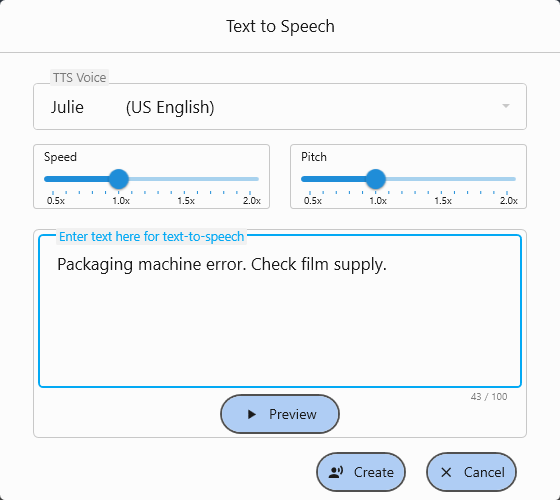
10 Languages Supported
- Japanese
- U.S. English
- German
- French
- Italian
- Spanish
- Chinese
- Taiwanese Mandarin
- Korean
- Thai
Your Own MP3 and WAV Files
You can import your own MP3 and WAV files as audio clips. Prepare files that meet the specifications below. Files that do not meet these specifications will not play correctly.
| MPEG-1 Audio Layer III (MP3) | Waveform Audio File Format (WAV) |
|---|---|
|
|
Built-in Alarms and Melodies
In addition to the factory default sounds, you can choose from 35 built-in alarms and 56 melodies.
Step 2Create a Playlist
Use your audio clips to create the playlist data* that you will transfer to the product.
- A list that defines the order in which audio clips are played, saved in Audio Builder's own file format (ABPL file).
Select audio clips and assign them to tracks to create playlist data. In the playlist editing area, you can duplicate (repeat) clips and adjust settings such as volume and duration. For detailed instructions, see the Help in PATLITE Audio Builder.
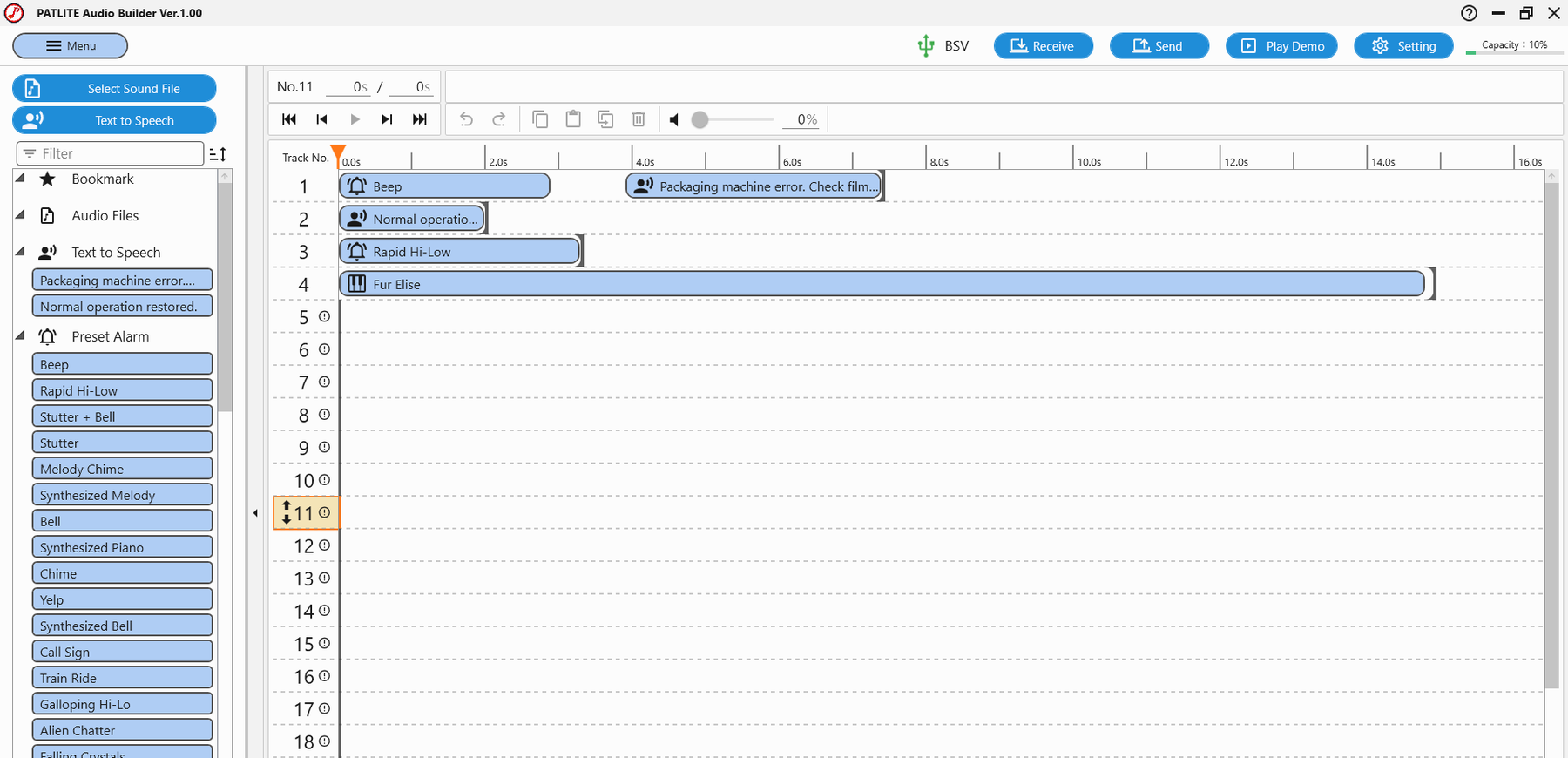
Supported OS: Windows 10 (22H2) / Windows 11 (22H2 or later). Both must be 64-bit versions.
Step 3Transfer to the Product
Transfer the playlist you create (ABPL file) to the product via USB Type-C. No dedicated programming unit is required. Use a USB Type-C cable that supports data transfer.